
Imagine this: You've just crafted an impressive AI-generated video using Vexub, and you're excited to share it with your audience. You hit the play button, but instead of a seamless viewing experience, you encounter playback issues that disrupt the flow. It's frustrating, but you're not alone. Many creators face similar challenges when dealing with AI video playback.
Understanding why AI videos sometimes struggle during playback is the first step toward finding effective solutions. Whether it's glitchy visuals or unexpected pauses, identifying the root cause can help you resolve these issues swiftly and keep your audience engaged. In this guide, we'll explore common AI video playback problems and provide practical solutions.
Why Does AI Struggle with Videos?
AI-generated videos are a marvel of modern technology, but they can be prone to playback issues due to several factors. The complexity of AI algorithms, file size, and the platforms used for playback all contribute to potential problems. Often, these issues arise because the AI's rendering capabilities are pushed to their limits, resulting in glitches or delays.
One reason AI videos might glitch is the intricate processing required to combine multiple elements like text, images, and animations. This process can create a heavy load on both the software and the hardware, leading to playback disruptions. Understanding these limitations can help you optimize your video settings for smoother performance.
Another factor is the compatibility of AI-generated content with different devices and platforms. Not all systems handle AI videos equally, which can cause inconsistencies in playback quality. Regular updates to both the AI tools and playback devices are essential to minimize these issues.
How to Fix Glitchy Video Playback
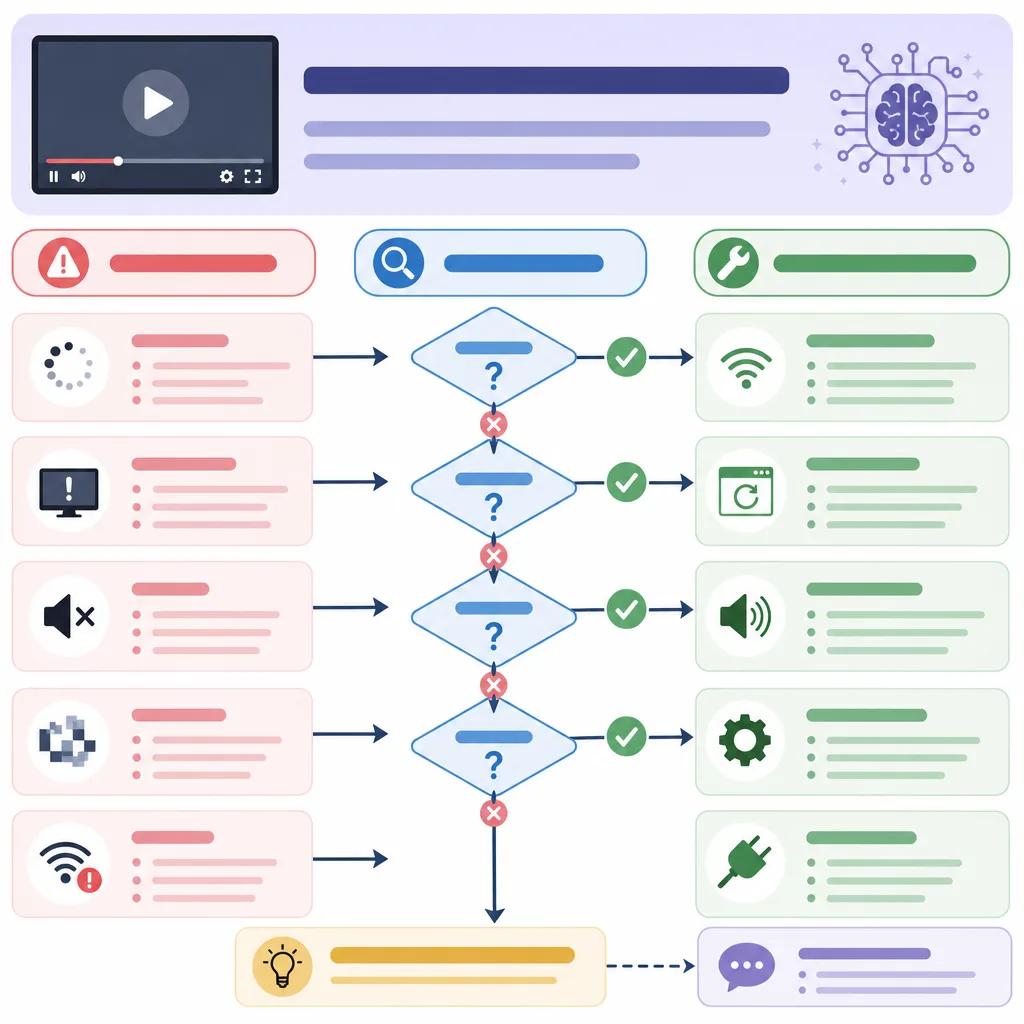
Resolving glitchy video playback involves a few straightforward steps. First, ensure your video files are encoded in a widely supported format like MP4 or MOV. Using a standard format helps maintain compatibility across various platforms and devices. If you're unsure about encoding, Vexub provides tools to convert your videos seamlessly.
Another effective solution is optimizing the resolution and bitrate of your videos. High-resolution videos with excessive bitrates can overwhelm playback systems, causing glitches. Adjusting these settings to match the capabilities of your audience's devices can significantly improve playback quality.
Consider reducing the file size of your videos by compressing them without sacrificing quality. This step not only enhances playback performance but also reduces load times, keeping viewers engaged. Tools like HandBrake or online services can assist in achieving optimal compression results.
Addressing Compatibility Issues
Compatibility issues are a common culprit behind AI video playback problems. To address these, always test your videos on multiple devices and platforms before releasing them to your audience. This testing phase helps identify any discrepancies and allows you to make necessary adjustments.
Additionally, ensure that your video player software is up to date. Outdated players may not support the latest video codecs, leading to playback errors. Regularly updating both your software and hardware is crucial for maintaining compatibility and ensuring smooth video playback.
For creators using Vexub, leveraging its built-in compatibility checks can streamline this process. Vexub automatically analyzes your video files and provides recommendations to enhance playback performance across different platforms.
Create videos like this with AI
Script, voiceover, images and subtitles — automated in minutes.
Repairing Corrupted AI Videos
Corruption in AI video files can occur during the editing or rendering process, resulting in playback errors. When faced with corrupted videos, the first step is to identify the source of corruption. Was it during file transfer, or did it occur during the editing stage?
Once identified, you can attempt to repair the video using specialized software. Tools like Stellar Repair for Video or Digital Video Repair are designed to fix corrupted files by reconstructing the damaged data. Always maintain backups of your original files to prevent data loss.
If the corruption is beyond repair, consider re-rendering the video from the original project files. This process can often resolve issues that arose during the initial rendering. Vexub's platform offers features to re-render videos efficiently, minimizing the risk of repeated errors.
Optimizing Video for Different Platforms
Each platform has its own specifications and requirements for video playback. Optimizing your AI videos for these platforms ensures the best viewing experience for your audience. Start by familiarizing yourself with the platform's recommended video settings, such as resolution, bitrate, and format.
For instance, platforms like YouTube and Vimeo have detailed guidelines that help creators optimize their uploads. By adhering to these guidelines, you can avoid common playback issues and enhance the performance of your videos. Vexub simplifies this process by providing preset options tailored to various platforms.
Another consideration is the aspect ratio of your videos. Ensure that your content is formatted correctly for the platform you're targeting. Mismatched aspect ratios can lead to cropping or black bars during playback, detracting from the viewer's experience.

Leveraging Vexub for Seamless Playback
Vexub offers an array of features specifically designed to address AI video playback issues, ensuring your content is always presented at its best. By utilizing Vexub's robust encoding tools, you can optimize your videos for a variety of playback scenarios, reducing the likelihood of encountering errors.
The platform also provides real-time analytics to monitor playback performance, allowing you to make informed adjustments as needed. With these insights, you can identify patterns in playback issues and implement targeted solutions quickly.
Furthermore, Vexub's support team is available to assist with any technical challenges you may face. Whether you're dealing with compatibility issues or seeking advice on optimizing your content, Vexub offers comprehensive support to enhance your video creation process.
For more tips on improving your AI video production, explore our articles on ", troubleshooting AI video creation, " and ", best AI tools for creating educational videos, ". By leveraging these resources, you can elevate your video projects and engage your audience effectively.